No help topics match your search. Try a shorter word, like photo, send or circuit.
Quick Start: a quote in 10 minutes
- Set your prices once. Open Pricing Settings, enter your target margin and any supplier discounts. Your prices are remembered in this browser.
- Fill in Installer and Customer Information. Click next to Quote Number to create one automatically.
- Measure. Either type lengths into each section, or upload a photo to the Visual Measurement Tool, calibrate it, and trace the rooflines.
- Choose colors, spacing and clips for each roofline area, and dimensions for trees, shrubs and pillars.
- Check the Power & Circuit Estimator. If anything is red, move sections to another circuit with the picker in each section.
- Enter labor (techs, rate, hours) and any travel, takedown or storage fees.
- Optional: press Preview Lights on the photo, then Save Image to include a lighting mockup with the proposal.
- Send. Use Send Quote to Customer, Send to Installer (your own record) and Send to Washco (material order). The quote is saved to My Quotes automatically.
Totals, bulb counts and power figures update by themselves as you type. There is no "calculate" button.
Screen layout & top buttons
The quoter has three tabs:
- Client Quoter: where you build the quote. This is what prints and what the customer sees.
- Pricing Settings: your margin, material costs, discounts, power limits and payment terms. Never shown to customers.
- Profit & Margin: your private profit breakdown for the current quote.
| Button | What it does |
|---|
| Washco Catalog | Opens the Washco holiday lighting catalog in a new tab. |
| Clear Quoter | Wipes the quote, including photos and the photo-tool drawing, and gives it a new quote number. Your Pricing Settings and Installer Information are kept. Save first if you may need it again. |
| Save Quote | Saves the current quote on this device. See Saving & reopening quotes. |
| My Quotes | Lists quotes saved on this device, and opens quote files. |
| Help | This guide. The small ? buttons on each section jump straight to the matching topic. |
| Specs | Product pictures and spec sheets (PDFs) you can view or download. |
| Dark Mode | Switches to a dark screen, which is handy outdoors at dusk. It doesn't affect printouts or emails. |
Installer & customer information
- Installer Information appears on the proposal. Customer replies go to the Installer Email Address, and the Send to Installer record goes there too.
- Customer Email Address is required for Send Quote to Customer.
- Address buttons: opens Google Maps / Street View, and opens Google Earth 3D. Both are useful for checking rooflines before a site visit.
- Quote Number: type your own or press to generate one. Saved quotes are filed by this number, so re-saving the same number updates that quote.
- Target Install Date: press to add it to Google, Outlook or Apple Calendar.
- Province / State only sets the electricity rate for the monthly energy cost estimate.
- General Property Photos: Add File picks from your device, and Camera takes a new photo. Each section also has its own Section Photos. Photos are attached to quote emails.
- Clear & New Quote clears the customer details and general photos and creates a new quote number. The lights you've specified stay, which is handy for quoting a neighbour with a similar house.
Visual Measurement Tool (measuring on a photo)
The tool is laid out in four steps, left to right: 1 Photo 2 Measure 3 Decor 4 Foreground. Each tab shows only the controls for that step, with a short tip. The Edit and View buttons underneath (Undo, Remove, Send to Back, Bring to Front, Clear All, Preview Lights, Night, Save Image) work from any tab. After you calibrate, the tool moves you to Measure automatically. Switching tabs stops whatever tool you were using, so a drag on the photo never does something unexpected.
- Add a photo (Photo tab): Upload Photo or Take Photo. Straight-on daytime shots work best.
- Calibrate: press Calibrate Scale, drag a line across something you know the size of, and enter its real length. A standard single garage door is about 9 ft wide, a double is about 16 ft, and a front door is about 6.7 ft tall. Use metres if the quoter is set to Metric.
- Pick a Section on the Measure tab (the section the line belongs to, such as Roofline (Fascia) or Tree Trunk).
- Choose Lights (color) and spacing in the toolbar. These are written into that section, so the quote and the mockup always match.
- Draw Line: drag along the roofline. The length is added to that section's footage, and the field flashes green. Draw several lines for one section and they add up.
| Toolbar button | What it does |
|---|
| Undo | Removes the most recent line or decor item and subtracts its length from the section (the field flashes yellow). To remove an earlier one, use Remove. |
| Clear All | Removes all lines and the calibration from the photo. It does not change footage already entered in the sections. |
| Decor tab: Place Decor | Adds wreaths or garland to the photo. See Lighting mockups. |
| Remove | Deletes one line or decor item that isn't right. Tap it on the photo to select it (it turns blue and the status bar shows what it is), then press Remove (or the Delete key). A removed measurement is subtracted from its section; removing the calibration line falls back to an earlier one, if any. |
| Send to Back / Bring to Front | For the selected line or decor item: behind painted foreground (hidden where a tree is painted) or in front of everything. |
| Foreground tab: Paint / Erase | Brush over trees and bushes that stand in front of the lights. See Lighting mockups. |
| Preview Lights | Shows the lights on the photo. See Lighting mockups. |
| Night | Darkens the photo to an evening view. |
| Save Image | Adds the current view to General Property Photos, so it's attached to the customer email. |
Accuracy: one calibration gives one scale for the whole photo. Lines at the same distance from the camera as your calibration object are accurate. Rooflines that run away from the camera, or the side of a house shot at an angle, will measure short. Calibrate on something close to the area you're measuring, and add a few feet for corners and drops to the outlet.
Lighting mockups for customers
- Calibrate the photo and trace each lit feature with Draw Line (see above). Rooflines, windows, doors, trunks, pillars and evergreens all work.
- Press Preview Lights. The measurement lines are replaced by glowing bulbs, and the view switches to Night automatically.
- Change colors or spacing from the toolbar or in the section. The preview updates immediately.
- Press Save Image. The mockup is saved as Lighting_Mockup_(date).png in General Property Photos and goes out with the proposal.
- Roofline-type areas show C9, G30 or G50 bulbs at the 12" or 15" spacing you chose.
- Colors: for rooflines and other C9/G areas, press the Lights color button and tick one or more of Warm White, Cool White, Pure White, Blue, Green, Red, Yellow, Orange, Pink, Ice Blue and Purple. Bulbs alternate between the colors you pick (e.g. red and blue, or purple and orange). Quick picks set common combinations in one tap: Multi (red → blue → green → warm white → orange), Red & Green, Red & White, Blue & White, Red, White & Blue, and Purple & Orange. The quote splits the bulbs evenly between the chosen colors.
- Trees, trunks and pillars with a Wrap Size show as spiral-wrapped. Lights behind the trunk appear dimmer. Evergreen features taper as a cone. With no wrap size, string lights draw as a straight run.
- Draw trunks and trees from the ground up or top down, either works. The tool treats the lower end as the base.
- Wreaths & garland: pick an item under Decor and press Place Decor. Tap the photo to place a wreath; drag along an eave, railing or door frame to hang garland (one 9' length is counted for every 9 feet). Drag any item to move it, or tap it and press Remove. Items are drawn at real size from your calibration.
- Lights behind trees: open the Foreground tab, press Paint and brush over any tree or bush that stands in front of the house (it shows pink while measuring). Lights and decor set to back are hidden behind the painted area, just like in real life. Rooflines and decor start behind; tree, shrub and pillar wraps start in front. To change one, tap it and press Send to Back or Bring to Front. Erase un-paints, Undo takes back the last stroke, and the brush has three sizes.
- Decor on the photo is added to the quote automatically: section 3 gets a row per item type named "As shown in mockup", and its quantity follows the photo.
- Use Show Measurements to switch back to the measuring lines.
The mockup puts a bulb at both ends of every line, so it can show a couple more bulbs than the quote. The quote's count is the one to order from.
1. Measurement Areas (rooflines, ridges, windows, ground)
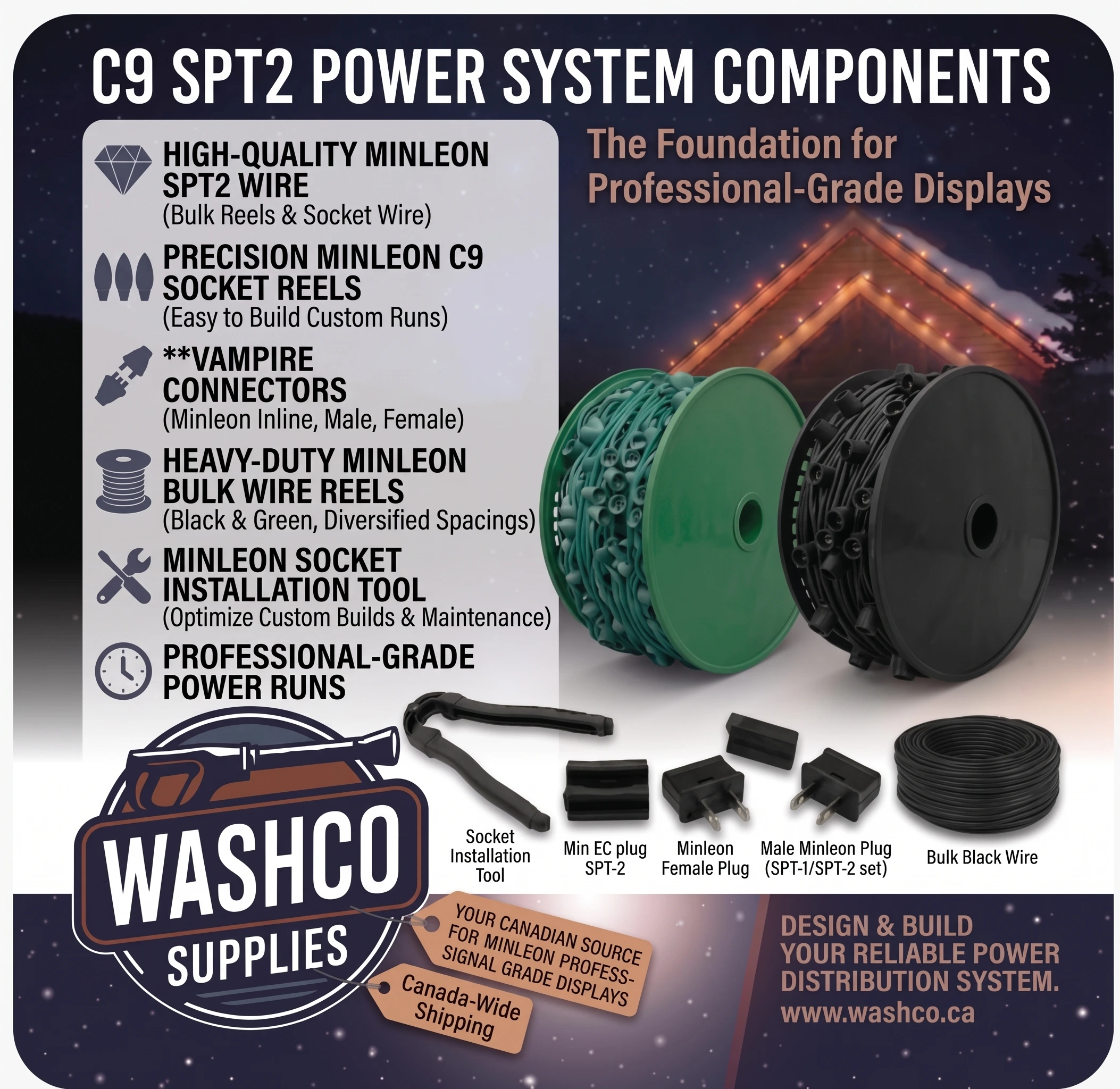
Each block is one run of E17 socket wire with C9, G30 or G50 bulbs.
| Field | How to use it |
|---|
| Location label | Optional note such as "Front" or "South side". It prints on the proposal and the installer record. |
| Circuit | Which outlet or circuit powers this area. See Power & circuits. |
| Length (LF or metres) | Total length of this area. Typed, or added from the photo tool. |
| Spacing | 12" (30 cm) or 15" (38 cm) between sockets. |
| Wire Color | Black or green socket wire. |
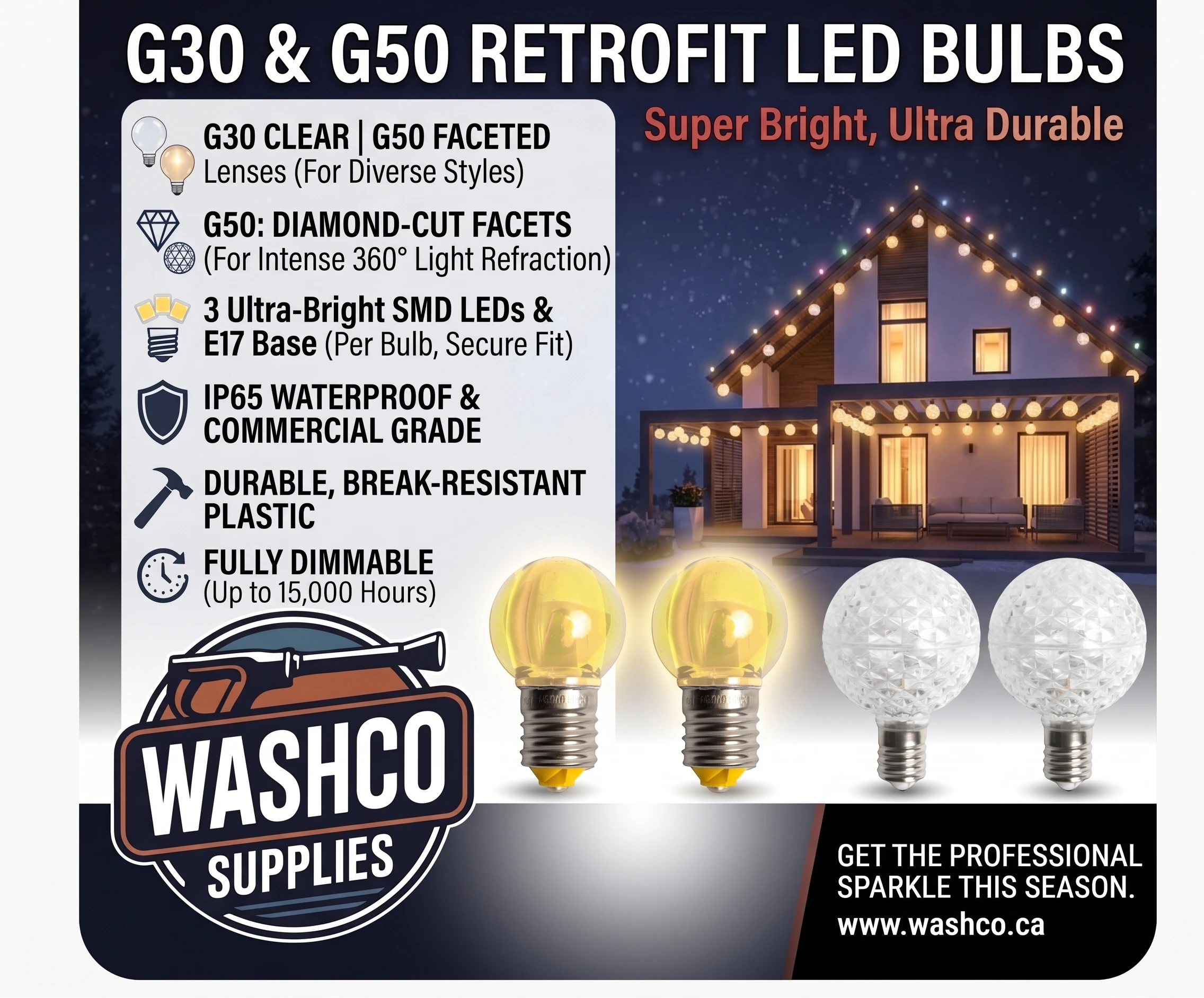
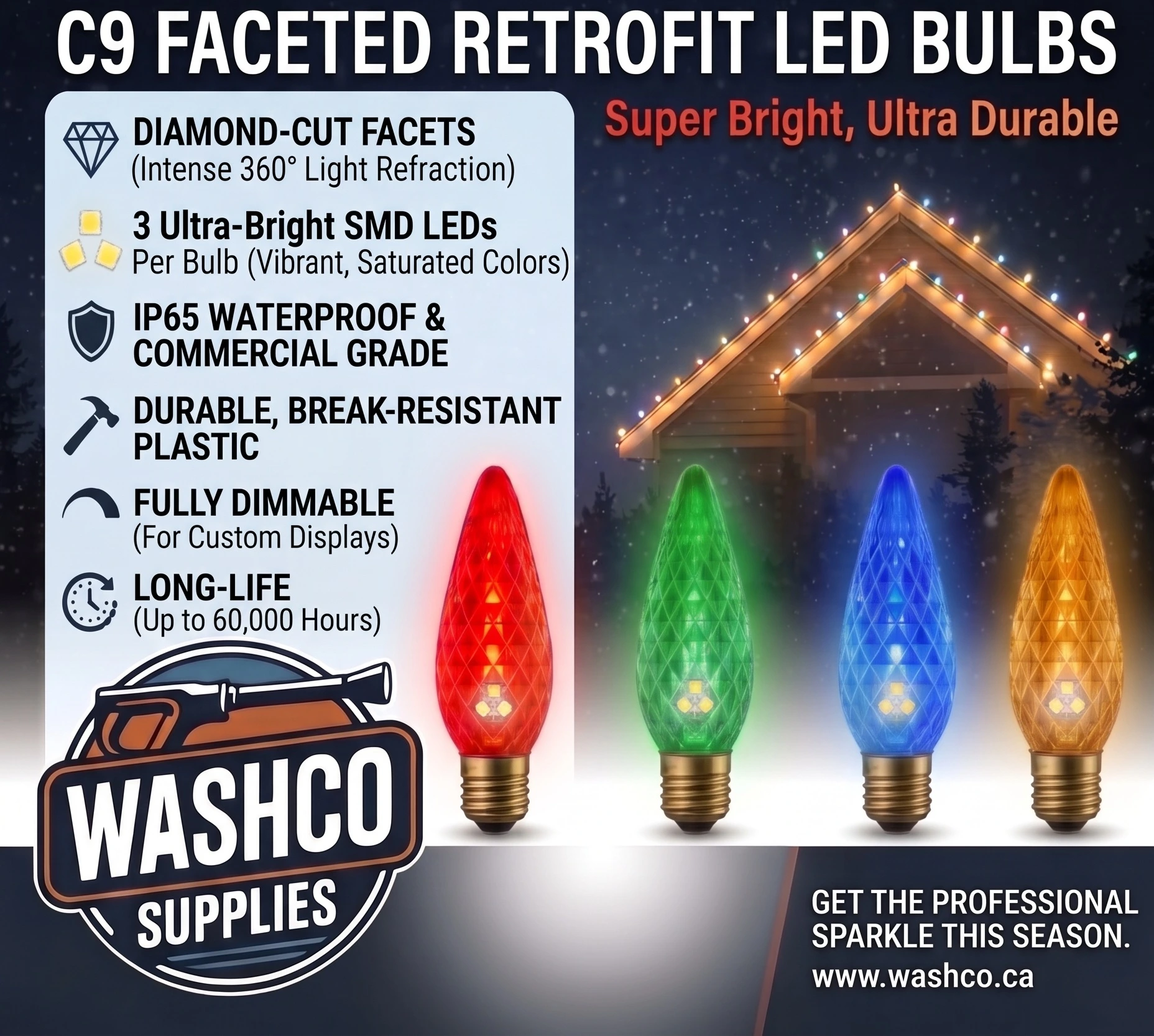
| Bulb Style | C9 Multi-Faceted, G30 or G50. |
| Mounting Clip | Clips are added automatically, one per socket, of the type you pick here. |
| Bulb Colors | Tick one or more. Bulbs are split evenly between the ticked colors. The Multi button ticks red, blue, green, warm white and orange. With no color ticked, bulbs are listed as "Color TBD". |
- Sockets = length ÷ spacing, rounded up. With several colors, each color's count is rounded up, so the total can be a bulb or two over.
- Add Another … adds a second roofline, ridge and so on (up to 5 of each). Add Additional Area adds a custom area you can rename by clicking its title (up to 5). Wreaths and miscellaneous items also allow 5 each.
- The blue summary bar shows total footage, sockets and bulbs.
2. String lights (trees, shrubs, pillars, doors, railings)
String lights come in 24' strands. Enter the dimensions and Strands Needed is worked out for you.
| Field | How to use it |
|---|
| Items (#) | How many identical trees, pillars and so on. |
| Length/Height | Height to wrap (trunks, pillars), or length of a straight run (doors, railings), in ft or m. Doors have quick buttons: Single 17' and Double 20'. |
| Wrap Size + type | How big the object is, in inches (or cm in Metric). Choose how you measured: Circ. = tape measure around it; Width = straight across a round trunk; Square = one face of a square column. Leave at 0 for a straight run. |
| Wrap Spacing | Gap between each turn of the spiral. Smaller gaps look fuller but use more strands. |
| Bulb Spacing | 4" (72 LEDs per strand) or 6" (48 LEDs per strand). |
| Strands Needed | Calculated automatically. You can type your own number. Changing the measurements recalculates it. |
| Color | Warm White, Red, Blue, Green or Multi. |
Strands per Plug / Wire per Plug: answers the common customer question "how much can I put on one plug?" Open it from Strands per Plug here, or Wire per Plug in section 1, and switch between 24' String Lights and C9 Socket Wire at the top. Pick the bulb spacing and, if you like, how many strands or how much wire you're running (this job's totals are filled in for you). It shows the most per power cord or plug and per household circuit, how many cords, plugs and circuits that needs, and a Copy for Customer sentence for a text or email. It uses the Power settings in Global Settings (watts per bulb or LED, max strands per coax cord, max socket wire per drop, usable watts per circuit).
How strands are counted: turns = height ÷ wrap spacing; length = turns × distance around × items; strands = length ÷ 24 ft, rounded up. Evergreens are cones, so half the base size is used. Example: 3 pillars, 10 ft tall, 24" square, 6" wrap spacing = 20 turns × 8 ft = 160 ft each = 480 ft = 20 strands.
Adders, logistics & labor
| Field | Effect on the price |
|---|
| Steep Pitch % / Access Diff % | Added together and applied to the materials subtotal (e.g. 10% + 5% on $1,000 = $150). |
| Travel / Zone | Flat fee added to the total. |
| Minimum ($) | If materials + adders + labor come to less than this, the quote is raised to the minimum. Travel, takedown and storage are added after the minimum check. |
| Techs × Loaded Hr Rate × Est. Hours | Labor charge (e.g. 2 techs × $70 × 4 hrs = $560). |
| Post-Season Takedown / Annual Storage | Flat fees shown as separate services on the proposal. |
Labor is charged to the customer and counted as your cost at the same Loaded Hr Rate, so it shows no profit on the Profit tab. If you want a profit on labor, set the rate to what you charge, not what labor costs you.
Power & circuit planning
Every area and string-light feature has a Circuit picker (Circuit 1–8). Assign each section to the outlet or breaker circuit that will power it. Everything starts on Circuit 1.
| Box | What it tells you | If it's red |
|---|
| Total Estimated Load | All lights combined, in watts and amps, split into C9/G bulbs and string-light LEDs. | (Information only.) |
| Busiest Circuit | The most heavily loaded circuit, as a % of a circuit's safe continuous load (1,440 W for a standard 15 A circuit). | Move sections to another circuit until every circuit is under 100%. The box tells you the minimum number of circuits the job needs. |
| Longest C9 Wire on One Circuit | Total socket wire powered from one circuit. | Over the per-drop limit (250 ft by default): feed that circuit from more than one point to avoid dim bulbs at the far end. |
| String Light Runs | How many coax power cords the string lights need. Each cord can feed a limited number of strands end to end (20 by default). | Split long features into separate runs, or make sure enough coax power cords are on the quote. |
| Est. Energy Cost / Month | About 11 hours a day for 30 days, at the electricity rate for the chosen Province/State. | (Information only. Good for showing customers how little LEDs cost to run.) |
The circuit table below the boxes lists each circuit's sections, wire, strands, watts, amps and a load bar (green under 80%, amber 80–100%, red over 100%). The same plan is included in the Send to Installer email for the install crew.
Wattages, the per-drop limit, strands per cord and watts per circuit can all be changed in Pricing Settings → Power & Run Limits. Check them against the product spec sheets under Specs.
The final quote, notes & printing
- Materials & Final Quote lists every line item at the customer price, then labor, fees, the minimum check and the total before tax.
- Job Notes & Instructions appear on the proposal and installer record. Don't put anything private here.
- Payment details come from Pricing Settings (cards, e-Transfer, cheque, cash and your own terms). The numbered Standard Terms & Conditions are fixed text. If your deposit terms differ from item 2, spell them out in your custom payment terms.
- Sales tax is shown as its own line with a Total with tax. In Canada the province's GST/HST/PST is used automatically; elsewhere, set a rate in Pricing Settings → Sales Tax.
- Print Quote prints a compact customer version. Settings, profit figures and buttons are left out. Choose "Save as PDF" in the print window to make a PDF.
Sending quotes by email
| Button | Goes to | Contains |
|---|
| Send Quote to Customer | Customer Email Address | A branded proposal with the scope of work, total, payment terms, T&Cs and your photos. It shows your company name, and replies come to your Installer Email. |
| Send to Installer | Installer Email Address | Your full record: detailed scope, circuit power plan, pricing, bill of materials, an Add-to-Calendar link, photos, and the quote file for reopening later. |
| Send to Washco | Washco (order desk) | Bill of materials converted to order units (spools, bags, packs). A box opens first for notes only Washco will see, such as rush requests or substitutions. |
- Photos must be JPG, PNG or WebP and under 5 MB each. Larger or other files are skipped.
- Every email you send also saves the quote to My Quotes.
- To protect against spam there's an hourly and daily sending limit, and a short wait between sends. Occasionally you may be asked to confirm you're human.
Saving & reopening quotes
No account or login is needed. Quotes are saved in your web browser on the device you're using.
- Save Quote saves everything: all fields, photos, the photo-tool drawing and the light preview. Saving again with the same quote number updates that quote.
- My Quotes lists saved quotes, newest first. Search by customer, address or quote number. Open reloads a quote, downloads it as a file, and deletes it.
- Open Quote File (in My Quotes) opens a downloaded quote file, or the one attached to any Send to Installer email.
- An opened quote is priced with your current Pricing Settings (margin, costs, discounts). If your prices have changed since, check the total before resending.
- The quote you're working on is also kept as a draft in this browser, so closing the page or reloading doesn't lose it.
Moving to another device: on the new device, open the Send to Installer email, save the attached .json file, then use My Quotes → Open Quote File. You can also download quotes from My Quotes and copy them across.
Saved quotes live in this browser only. They are not shared between devices or browsers, aren't kept in private or incognito windows, and are deleted if you clear browsing data. For anything important, keep the installer email or download the file.
Pricing Settings
- Measurement System: Imperial (feet and inches) or Metric (metres and cm). This affects every length field, the photo tool and the emails.
- Global Material Margin: customer price = cost ÷ (1 − margin). At 30%, an item costing $1.00 sells for $1.43. This is true margin, not markup.
- Supplier Discount (%) per category lowers your cost before margin. The green "Net" figure under each cost shows the result.
- Cost fields are your purchase cost per foot or each. Reset All Costs to Default restores Washco list prices.
- Power & Run Limits: watts per bulb, max socket wire per drop, max strands per coax cord, usable watts per circuit.
- Auto-Add Power Accessories: turn on or off the automatic vampire plugs and coax power cords, and choose rectified or standard cords.
- Sales Tax: automatic for Canadian provinces, or a manual rate and name (e.g. for US states).
- Payment Options & Terms print on every proposal.
Settings are remembered in this browser. On a new device, enter them again once.
Profit & Margin tab
Private to you; never printed or emailed. It shows:
- Gross Revenue: the quote total.
- Total Cost: wholesale materials after your discounts, plus labor at the loaded rate.
- Net Profit and Gross Margin % for the whole job. This is usually lower than your material margin, because labor, the minimum charge and fees are included.
Clearing & starting over
| Button | Clears |
|---|
| Clear (on a section) | Only that section's fields. |
| Clear & New Quote | The customer details and general property photos, and gives it a new quote number. Everything else stays, which is handy for a similar house next door. |
| Clear Quoter (top) | The whole quote, including photos and the photo-tool drawing. Pricing Settings, Installer Information and quotes saved in My Quotes are kept. |
Troubleshooting & FAQ
Sending
- "No customer email provided" / "No installer email provided"
- Fill in the matching email address in Customer or Installer Information.
- "Invalid … email address format"
- Check the address for typos and spaces (it should look like name@company.com).
- "Please wait a few seconds before sending again"
- Sends need a short gap between them. Wait a moment and press the button again.
- "The hourly / daily email limit has been reached"
- The spam-protection limit was hit. Try again later, or use Print Quote → Save as PDF and email it yourself.
- "Human verification failed"
- Refresh the page (your quote can be reopened from My Quotes) and send again.
- A photo didn't arrive with the email
- Only JPG, PNG and WebP under 5 MB are attached. Phone "HEIC" photos may need converting, or take the photo with the Camera button instead.
- The customer says they didn't get the quote
- Ask them to check spam or junk, confirm the address, and resend. Their replies come to your Installer Email.
Measuring & calculations
- Photo measurements seem too short
- The line is probably at an angle to the camera, or further away than your calibration object. Recalibrate on something near that area, or type the length in.
- One line is wrong, but it isn't the last one I drew
- Tap that line on the photo to select it (it turns blue), then press Remove. Its length comes off the section automatically. Then draw it again.
- I can't draw on the photo
- Upload a photo, press Calibrate Scale and draw the calibration line, pick a Target, then press Draw Line.
- Strand counts look too high or too low
- Wrap Size is in inches (cm in Metric), not feet. Check you picked the right measure type: Square is one face of a column, and Width is straight across. A smaller wrap spacing uses more strands.
- Bulb total is slightly more than sockets
- With several colors, each color is rounded up, so you get a spare or two.
- A circuit shows over 100%
- Use the picker in some of that circuit's sections to move them to another circuit. Each circuit should be on its own breaker; outlets on the same breaker are the same circuit.
- The total is higher than the items add up to
- The Minimum charge was applied. See the "Minimum Check" line in the quote.
Mockups
- Preview Lights says to draw a line first
- The preview places lights along lines you've drawn for a section. Calibrate, pick a Target and draw.
- Lights show on top of a tree that's in front of the house
- Use Foreground → Paint to brush over the tree. If those lights still show, tap them and press Send to Back.
- Wrong colors in the mockup
- The mockup uses each section's colors. On the Measure tab, pick the Section and change Lights, or tick colors in the section.
- Trees show as a straight line of lights
- Enter a Wrap Size for that feature. With 0, it's treated as a straight run.
- A decor quantity keeps changing back
- Rows named "As shown in mockup" follow the decor on the photo. Add or remove items on the photo, or add a separate row in section 3 for extra pieces.
Saving
- My saved quotes are gone
- They're stored per browser and device. Check you're on the same device and browser, not in a private window, and that browsing data wasn't cleared. Reopen from the quote file in any Send to Installer email.
- Opening a quote file says it isn't a quote
- Only .json files made by this quoter can be opened. Don't edit them in a text editor.
Glossary
- LF
- Linear feet: length along the roofline.
- Socket wire (SPT-1, E17)
- Wire with built-in sockets every 12" or 15" that C9, G30 and G50 bulbs screw into.
- Vampire plug
- A plug that clamps onto cut socket wire, so runs can be made to exact length.
- Drop / power run
- A point where power is fed into a run of lights.
- Circuit
- Everything on one breaker. A standard 15 A household circuit safely carries 1,440 W of lights continuously.
- Strand
- One 24' string light (72 LEDs at 4" spacing, 48 at 6").
- Coax power cord (rectified)
- Plugs a run of commercial string lights into an outlet. Rectified cords remove LED flicker.
- Margin vs markup
- 30% margin means 30% of the selling price is profit (cost ÷ 0.70). 30% markup would be cost × 1.30, which earns less.



 Washco Catalog